
Ascending: Peaks Beyond
The Setup Process of Ascending: Peaks Beyond

Good evening! I am the lead Quality Assurance and assistant Gameplay Programmer for Ascending: Peaks Beyond. I'd like to recount the setup process and highlight challenges I faced between finding a team to getting this very blog post up and running.
After the team and I had the greenlight to begin work on our game, it was time to setup the game project and hook it up to source control so then the game project files would be shared between all developers and streamline development between us. The source control application of choice was Perforce, which is integrated nicely into Unreal Engine. Things went well until I hit a snag with how Perforce file structuring works and the flow from workspace to server is handled.
Source Control Issue - p4ignore Setup
My main roadblock was getting our Unreal Engine 5.5.4 project fully set up on Perforce so the rest of the team could pull it down and start working. The tricky part wasn’t the server connection itself, but rather making sure the project’s directory structure was correct and that Perforce was actually ignoring the right files. I realized the p4ignore file had been placed one folder too high, which meant Perforce wasn’t filtering out intermediate or generated content the way it should. If I pushed the project in that state, everyone else would’ve ended up pulling machine-specific or otherwise conflicting files that could cause errors and slow down development time significantly. Sensitive files within the Binaries or Build folder would get through and bloat up server space causing issues not only for our team, but other teams working within the same server space as us.
Getting this sorted out was important because source control is the lifeblood of our development flow. If the project doesn’t sync cleanly on day one, everything downstream becomes harder. It'd result in slow onboarding, missing assets, and teammates spending more time resolving errors than developing the game.
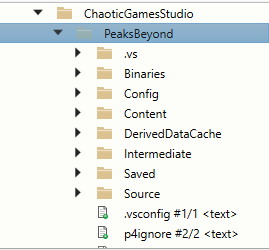
How I Fixed It
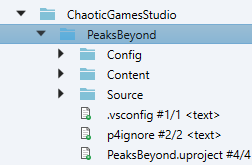
Once I tracked down the issue, the fix came from reorganizing the workspace properly. Using Perforce’s rename/move operation, I moved the p4ignore file into the actual game project folder. After that, I ran a couple Perforce commands through the command prompt in the directory to verify that the ignore rules were being applied so no build artifacts, saved data, and other non-source files were incorrectly being added into the server files.
With the ignore rules listed out, I highlighted the project’s root folder and marked it for add. Perforce then picked up everything that should go to the server, while skipping all the files filtered out by the updated p4ignore. This setup ensures that my colleagues get only the essential project assets when they refresh and get revision, making the onboarding process smoother and keeping the repository clean and organized. Ultimately, it means fewer headaches for the team and a much more reliable workflow going forward.
Following all of this, development of Ascending: Peaks Beyond is now kicking off and content is being made to shoot for a demo very soon! Myself and the team are working hard to get all the paperwork settled so then we can rip right into creating the core game loop, as well as some other additions we're excited to get into.